Planner: A Daily Task List by Date
Add tasks to a date and check them off. No stages or categories to set up first.
The Planner in toodoori is a daily planner: a task list organized by date. It opens to today’s date, and anything you type in the input box at the bottom becomes a task for that day. You can start using it without setting up the stages of a kanban board.
The Planner and the Kanban Board show the same tasks in two different layouts. A task you add in the Planner also exists on the Board, and a task you complete in the Planner moves to a stage in the Finished group on the Board. You can switch views at any time, and your tasks stay as they are.
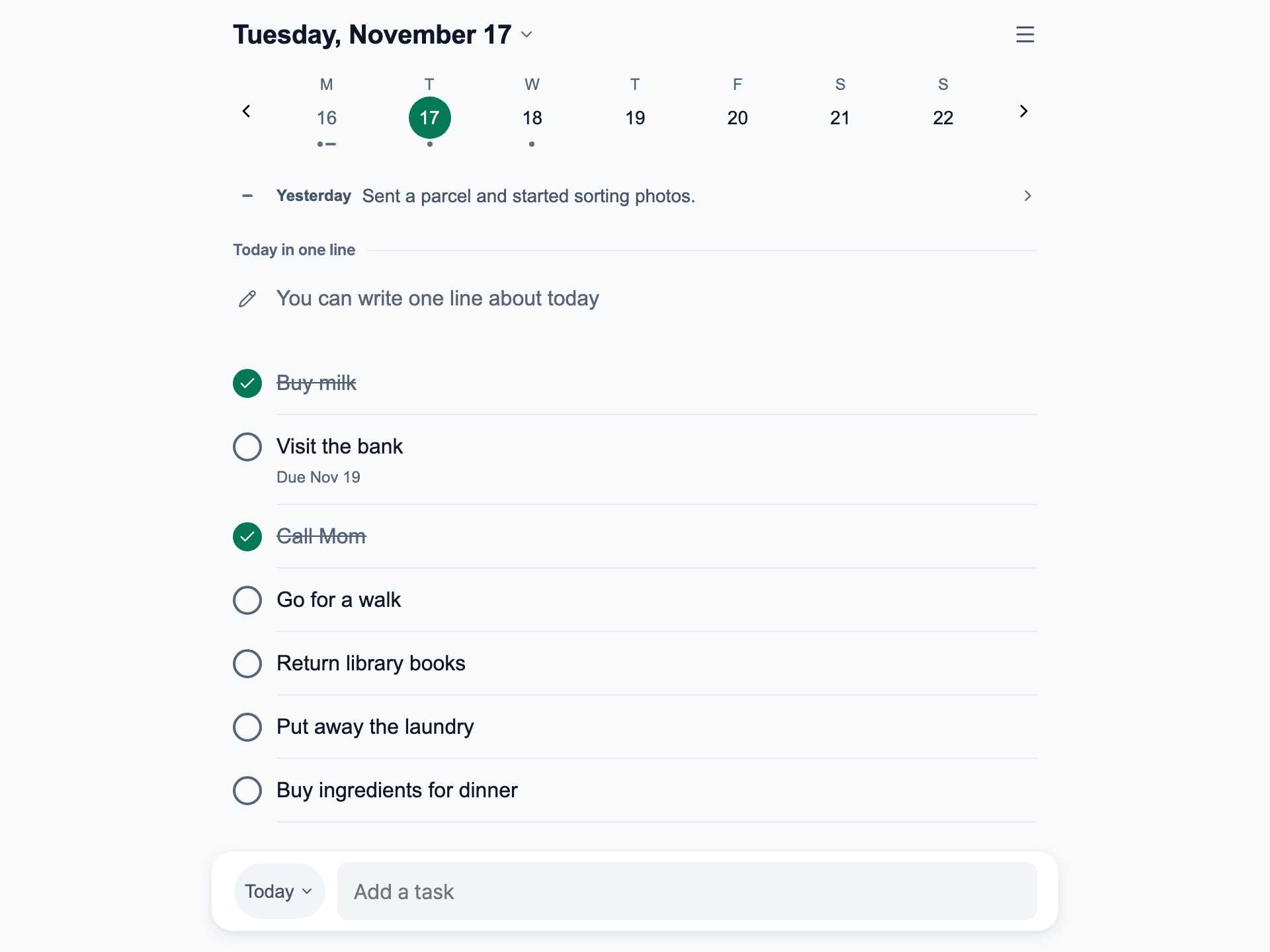
What is on the screen
- Date strip: seven days, from yesterday to five days ahead. Select a date to go to that day. A dot under a date means the day has tasks. A short bar means you wrote a line about that day.
- Today in one line: a place to write one line about today. It is optional.
- Task list: the tasks for that day, one per row.
- Input box: always at the bottom of the screen. The date chip on its left shows which day the task you are typing will go to.
Add and complete tasks
Type a task in the input box and press Enter. The cursor stays in the box, so you can keep adding tasks.
Select the circle to the left of a task to complete it. Select the circle again to mark the task unfinished. A completed task does not disappear. It stays where it was, struck through. The next time you open that day, completed tasks are grouped below the remaining ones.
Select a task to edit its title, date, and notes. If a task has a checklist, select the arrow at the right of the row to expand it, then check off items. Checking every item does not complete the task. You complete it yourself with the circle. To decide between a checklist and subtasks, see Work Breakdown: Checklists, Subtasks, and Dependencies.
Add a task to a later day
You cannot add new tasks to a past date. There are three ways to add a task to a later day.
- Select the day in the date strip, then type the task.
- Select the date chip on the left of the input box and pick a date. The date applies only to the next task you add.
- Start the task with a word such as “tomorrow” or “Friday”. The date chip changes to that day, and the task goes there when you add it.
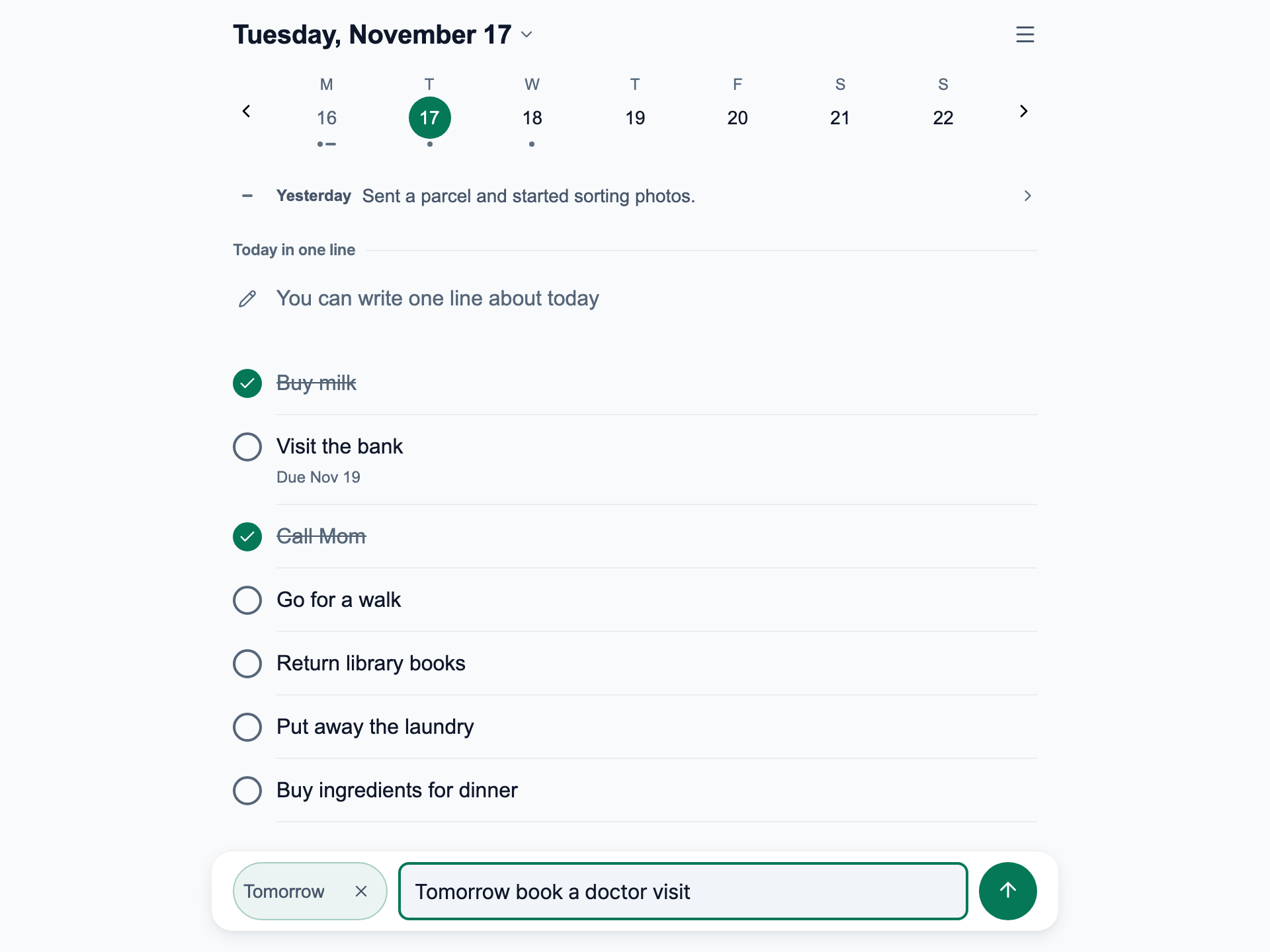
If you do not want the word read as a date, select the X on the chip. Everything you typed, including that word, becomes the title. To turn date detection off, select Menu (the three-line button at the top right), go to Settings > Adding tasks, and turn off Detect dates as you type. This setting applies only to the device you are using.
When you add a task to a day other than the one you are viewing, a notice at the bottom of the screen tells you which day it went to. Select View day in the notice to go there.
Unfinished tasks stay on their day
The Planner does not roll unfinished tasks over to the next day. They stay on the date you put them on.
If earlier days still have unfinished tasks, a collapsed row at the bottom of today’s list shows how many tasks are left from past days. Expand it and use Move to today to bring tasks over one at a time, or Move all to today to bring them all. Right after a move, a notice appears. Select Undo in it to move the tasks back.
Tasks without a date
Tasks without a date are under Menu > Unscheduled tasks. Add a task there when you do not yet know when you will do it. When you have a day in mind, select the task and set a date.
One line a day
With today open, select Today in one line near the top of the screen to write one line about the day. A line can be up to 100 characters.
The line stays on its date. When you open the Planner the next day, the line appears below the date strip, labeled Yesterday. Select it to go to yesterday. When you open a past date, you see that day’s line together with the tasks you completed that day.
A day without a line is not marked in any way. The Planner does not count streaks, and it does not send reminders to write.
Planner settings
You can change the following under Menu > Settings.
- Theme: pick the colors of the screen. The Board uses the same theme. See Make It Yours for the themes.
- Detect dates as you type: turn the date detection described above on or off.
- Language: Korean or English.
- Default view: choose whether toodoori opens on the Planner or the Board.
Switch between the Planner and the Board
When you sign up, you choose between Planner and Board. You can change that later. Where you change it depends on the view you are using.
- If you use the Board: open My Page, and at the bottom of the Profile tab, choose Planner under Default view. After it saves, select Open Planner.
- If you use the Planner: go to Menu > Settings > Default view, choose Board, and select Open Board.
If you have more than one project, the Planner shows tasks from the project you created first.
The Planner works well when a list of tasks for each day is all you need. The Board works well when work passes through several stages or when you want to limit how much is in progress at once. For more on the difference, see To-Do List App vs. Kanban App: Which Should You Use?. To pick out just the tasks for the day on the Board, see Today: Choose Your Daily Tasks.