Notifications: Daily Task and Due Date Reminders
You only get the notifications you turn on. Both are off until you do.
toodoori sends two kinds of notifications. Today’s tasks is a single notification at a time you choose, listing the tasks you have left for today. Due date reminders tell you about a task before it is due. You can get them in a browser on a computer or Android device, on iPhone or iPad when you open toodoori from the Home Screen, and in the Mac app.
All the settings are in the Notifications tab on My Page. If you use the Planner, Menu > Notifications opens the same tab.
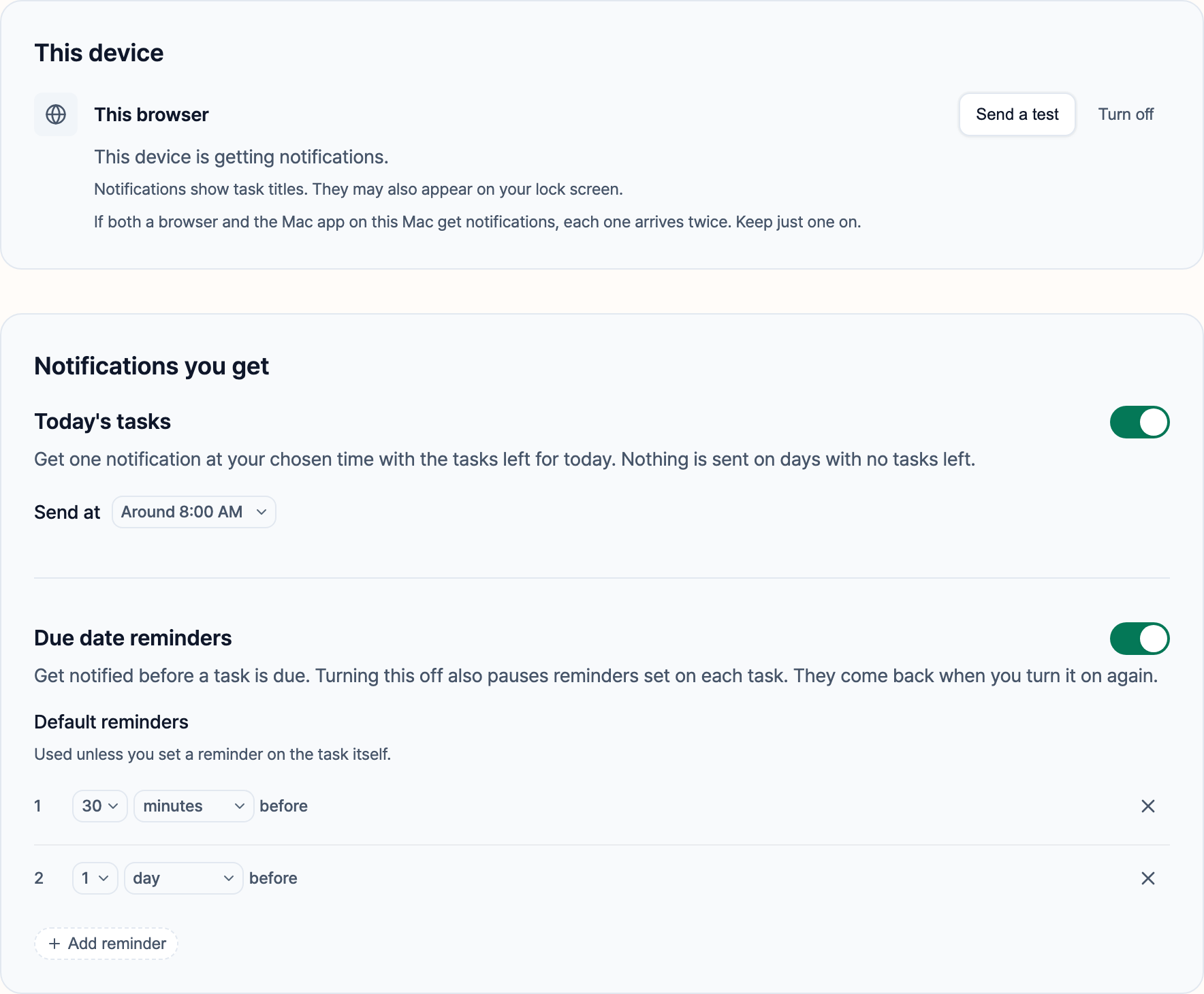
Where you can get notifications
Notifications go only to devices where you selected Get notifications here.
- Browsers: Chrome, Edge, Firefox, Safari, and other browsers on a computer or Android device.
- iPhone and iPad: iOS or iPadOS 16.4 or later. Notifications work only when you open toodoori from the Home Screen icon, not in Safari. To add toodoori to your Home Screen and sign in there, see Install toodoori on iPhone and iPad.
- Mac app: version 0.2.0 or later. On an earlier version, the Notifications tab asks you to update. To install or update the app, see Install the toodoori Mac App.
If you turn on notifications in both a browser and the Mac app on the same Mac, each notification arrives twice. Keep just one of them on.
Turn on notifications
- Open the Notifications tab on My Page.
- Under This device, select Get notifications here.
- If your browser or device asks whether to allow notifications, allow them.
- Select Send a test. When a notification titled “Notifications are working” arrives, this device is ready.
- Under Notifications you get, turn on the switch for each notification you want: Today’s tasks, Due date reminders, or both.
If the test does not arrive within a minute, check this device’s notification settings. If notifications for toodoori are blocked in your browser, allow them in the browser’s site settings. If you use the Mac app, open macOS System Settings, choose Notifications, and allow toodoori. When you return to the Notifications tab, toodoori checks again whether notifications are allowed.
Turning notifications on or off under This device affects only the device you are using. The switches under Notifications you get apply to your account, so they are the same on every device that gets notifications.
To stop getting notifications on this device, select Turn off. Your other devices keep getting them. To get them here again, select Get notifications here.
If you sign out of toodoori on a device, that device stops getting notifications too. When you sign in to the same account on that device again, notifications resume. You don’t need to turn them on again. If you selected Turn off on that device, notifications stay off after you sign in again.
Today’s tasks
At the time you choose, one notification lists the tasks you have left for today. The notification title shows how many tasks are left, and the body shows up to three task titles. If more tasks are left, the body ends with a count of the others, such as “and 2 more.”
- Which tasks count: in the Planner, today’s unfinished tasks. On the Board, the unfinished tasks you added to Today. If you have more than one project, toodoori counts only tasks in the project you created first, whether you use the Planner or the Board.
- Send at: choose a time in 30-minute steps. When you first turn on Today’s tasks, the time is set to 8:00 AM. The notification arrives around the time you set.
- Days with nothing left: no notification is sent.
Due date reminders
A due date reminder tells you about a task before it is due. It shows the task title and the due time, such as “Due today at 6:00 PM.” Completed and archived tasks do not get reminders.
Default reminders
Default reminders in the Notifications tab are used for any task that does not have its own reminder. When you first turn on due date reminders, there is one default reminder: 30 minutes before.
- Select Add reminder to add another. You can have up to three.
- For each one, choose a number of minutes, hours, days, or weeks before the due time, or choose At due time.
- If you remove all of them, you only get reminders you set on a task.
Turning off due date reminders also pauses the reminders set on each task. When you turn them on again, those reminders come back as they were.
Set a reminder on a task
For each task, you can choose one of these:
- Use default: use the default reminders from the Notifications tab. Every task starts with this.
- At due time: one reminder when the task is due.
- Custom: one reminder time just for this task, such as 2 hours before.
- Off: no due date reminders for this task.
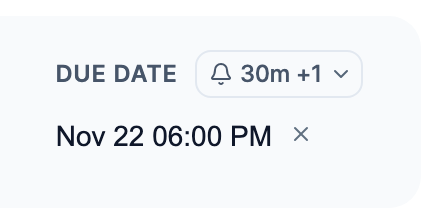
On the Board, open the task details and choose an option from the menu with the bell icon next to the Due date label. When a task is set to Use default, the menu shows the default reminder times in short form. For example, “30m +1” means 30 minutes before, plus one more reminder. If due date reminders are turned off in the Notifications tab, the menu shows “Paused” instead. With any other option, the menu shows the option you chose, such as “At due” for At due time. If you choose Custom, fields for setting the reminder time appear below the due date.
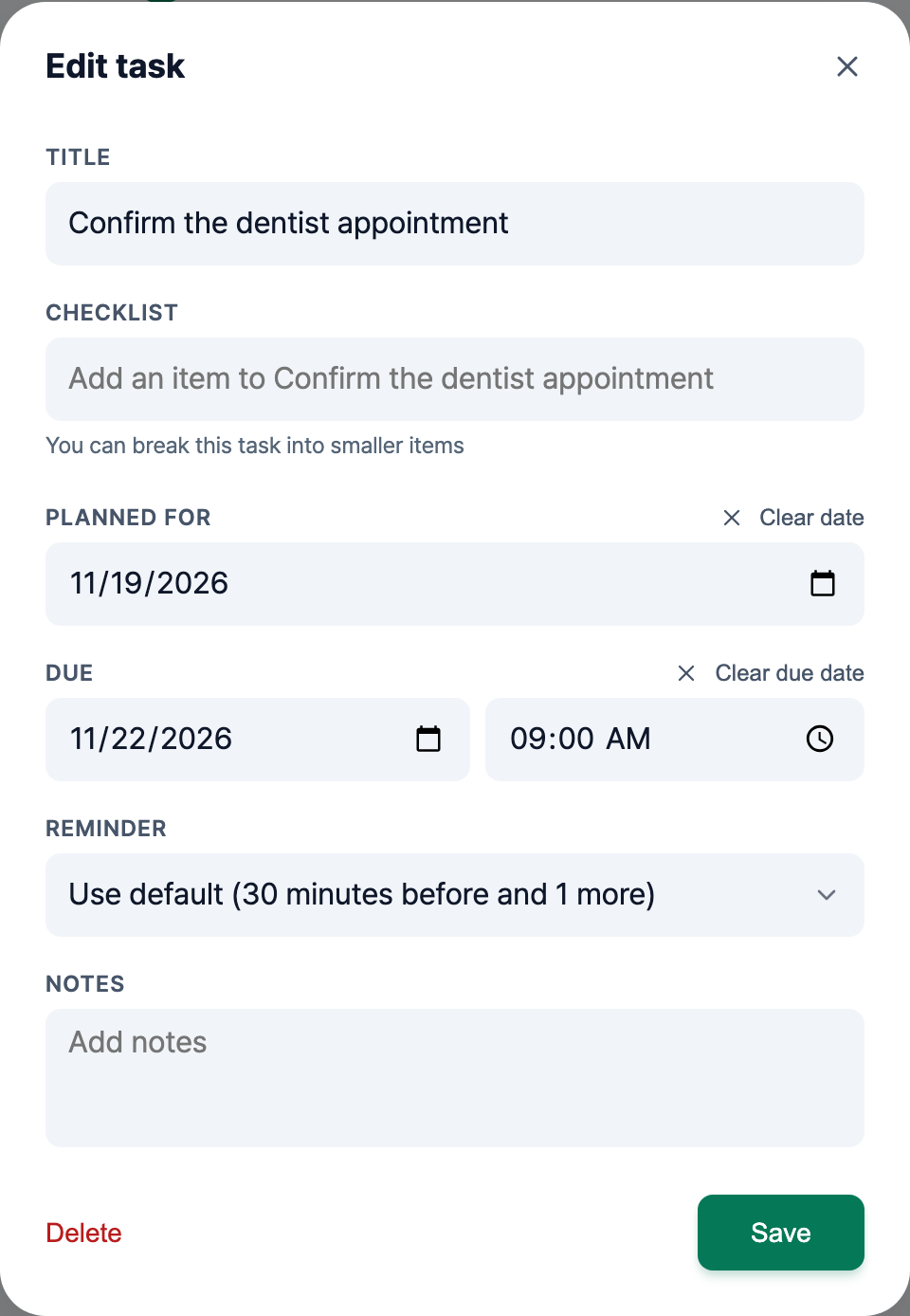
In the Planner, select a task to open the Edit task window. Planned for is the day the task appears on. Due is the task’s due date and time. Due date reminders are timed from Due, not from Planned for. For example, a task planned for Monday and due Friday at 6:00 PM appears on Monday, and its reminders are timed from Friday at 6:00 PM.
Once the task has a due date, the Reminder field appears. Choose an option there. When you first add a due date in the Planner, the due time is set to 9:00 AM. You can change it.
If due date reminders are off, you see “Due date reminders are off.” and a Turn on button where you set a task’s reminder. Select Turn on to turn them on without opening the Notifications tab. If the reminder time has already passed, a note says so, and no reminder is sent.
When you select a notification
Selecting a notification opens the related screen. If toodoori is already open, the screen opens in that window.
- If you use the Planner: a Today’s tasks notification opens the Planner to the day it was sent. A due date reminder opens the Planner to the due date.
- If you use the Board: a Today’s tasks notification opens Today on the Board. A due date reminder opens that task’s details.
Time zone
Notifications follow your account time zone. If the device you are using is on a different time zone, the Notifications tab tells you. Select Match this device’s time zone to change your account time zone to the device’s.
What notifications show
Notifications show task titles, and depending on your device settings, they may also appear on your lock screen. They reach your device through the push service run by your browser’s maker, or through Apple. For what information goes where, see the Privacy Policy.