Task Relations: Dependencies and Linked Tasks
Link what comes before and after, and see the whole chain in one place.
In toodoori, you can link one task to another as Blocked by, Followed by, or Related, to note dependencies and keep track of tasks that belong together. Linked tasks gather in the Relations section of the task details. Click View flow to open the flow view in the same panel. It draws every task linked before and after the task you’re viewing, in order from top to bottom.
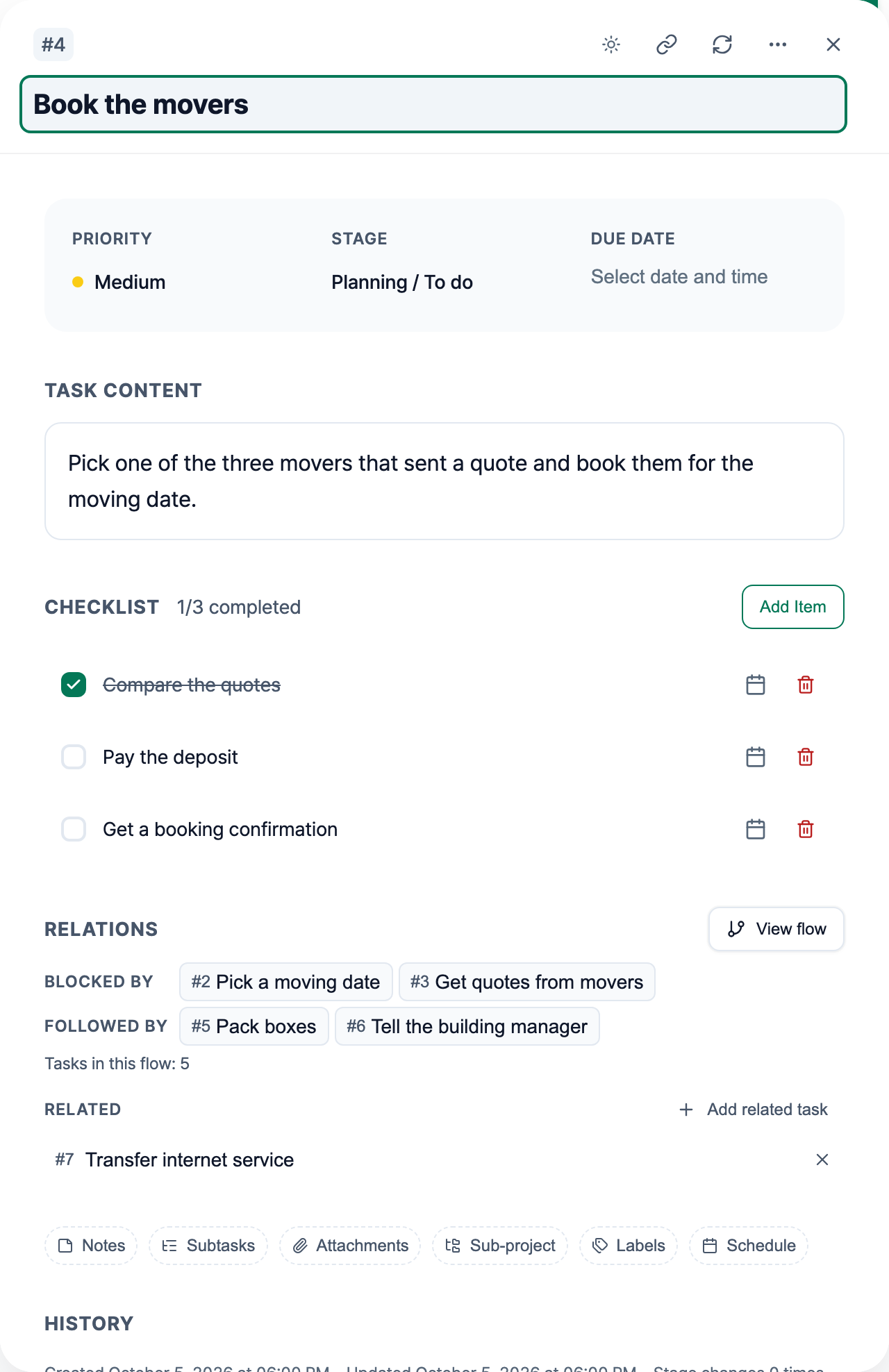
Three kinds of relation
A relation has one of three names.
- Blocked by: tasks that come before this one.
- Followed by: tasks that come after this one.
- Related: tasks you want to keep track of together, in no particular order.
Say you’re moving. You can link “Get quotes from movers” after “Sign the lease,” and then “Book the movers” after that. “Transfer internet service” has no fixed place in that order, but it still belongs with the move, so link it as Related.
Blocked by and Followed by are two names for the same link, seen from each end. If you add B under Followed by on task A, A shows up under Blocked by when you open B.
The Relations section
Open a task and its Relations section shows the tasks linked directly to it. If nothing is linked yet, Relations sits in the chip row at the bottom of the panel instead. Click the chip to open the section.
- Blocked by and Followed by each get a row. A row shows up to three tasks, and the rest are grouped as +N more. Click +N more to open the flow view.
- Tasks in this flow: N counts the tasks linked directly to this one, plus every task linked before or after those, all the way along the chain. Related tasks aren’t counted.
- Click a task to open its details in the same panel. The Relations section stays in the same spot on screen, so you can step through linked tasks one by one.
- Related tasks are listed at the bottom of the section. They have no order, so the flow view doesn’t draw them.
The flow view
Click View flow and the flow view slides into the panel, pushing the task details aside. It doesn’t open a new window over the board, so on a wide screen the board stays in view while you look at the flow.
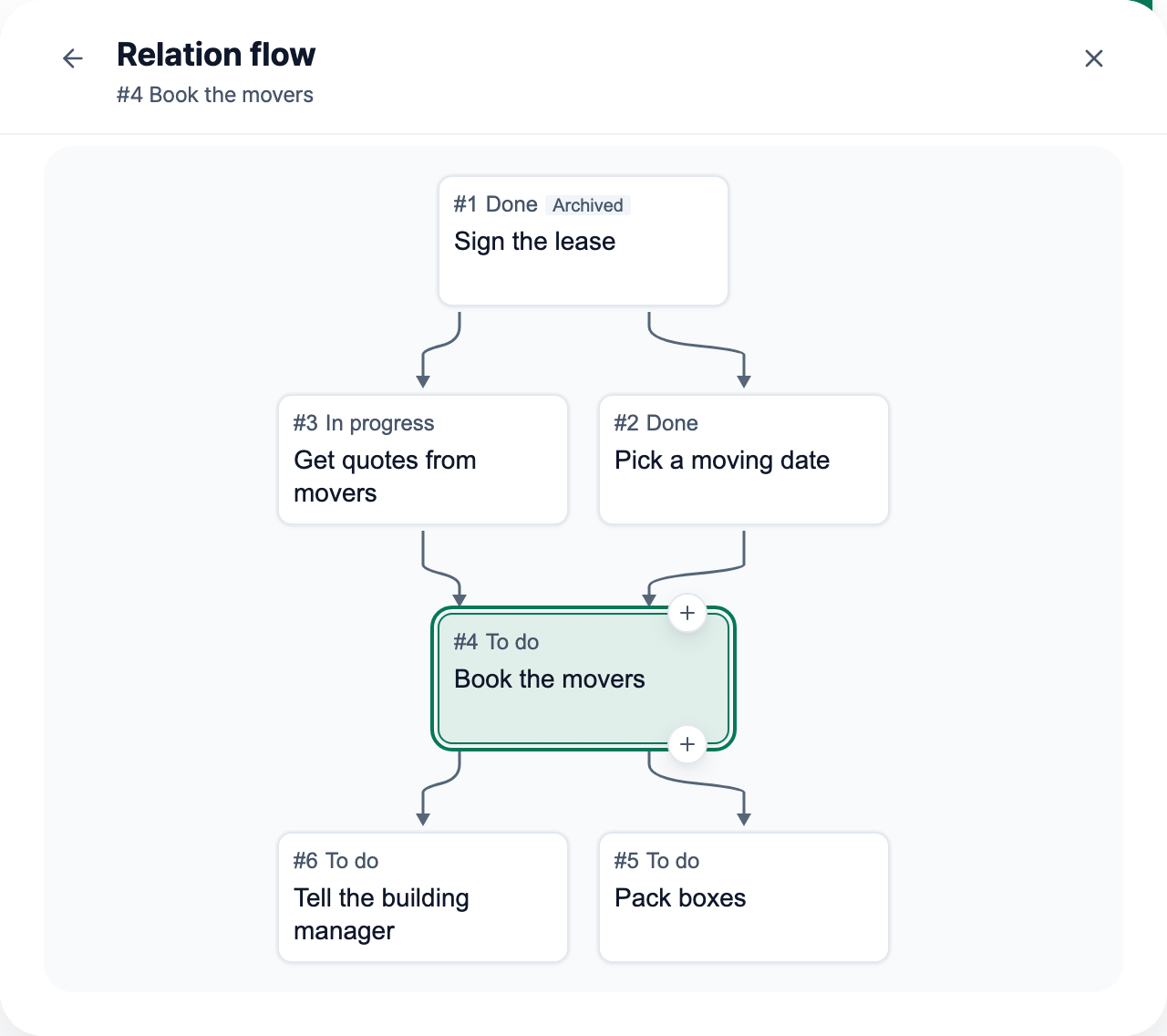
- Earlier tasks sit above, later tasks below. Starting from the task you’re viewing, the flow view follows links backward and forward to the end of the chain and draws every task it reaches.
- Each task appears as a box showing its number, stage, and title. The task you’re viewing has a colored border, and archived tasks carry an Archived badge.
- Click another box to close the flow view and open that task’s details in the same panel. Archived tasks open there too, in read-only mode, so you stay in the panel instead of going to the archive.
- To return to the task details, click the back button at the top of the flow view, click the box for the task you’re viewing, or press Esc.
Your browser’s back button closes the whole task detail panel, not just the flow view.
Linking tasks in the flow view
Each box has two + buttons, one at the top right and one at the bottom right. The top button links a task before it, and the bottom one links a task after it. On the box for the task you’re viewing, the + buttons are always visible. On other boxes, they appear when you hover over one or move to it with the keyboard.
- Click a + button to open an input row below the flow.
- Search by task name or #number.
- Pick a result to link it right away. If the task doesn’t exist yet, you can create it from the title you typed and link it in one step.
Tasks you create this way land in the first stage of the Planning group, just as they do when you add a task without choosing a stage.
On desktop, you can also drag a + button onto another box to link the two tasks. A link that already exists won’t be created twice.
Removing a link
Hover over a line or click it, and an X button appears in the middle. Click the X to remove the link. On touch screens, the X is always visible on lines attached to the task you’re viewing.
When you remove a link, a notification appears. Click Undo in it to restore the link. If removing a link splits the flow in two, the flow view keeps only the part with the task you’re viewing, and the notification tells you how many tasks left the flow.
Related tasks
You add and remove Related links in the Relations section. Click Add related task to find a task to link. To remove a link, click the task’s X in the list.
What a relation does and doesn’t do
A relation only names how two tasks are linked. You can move a task to another stage or complete it even if the tasks listed under Blocked by aren’t finished yet. toodoori doesn’t use relations to mark a task as ready or waiting, and it doesn’t count how many tasks in a flow are finished. The flow view shows each task’s number, title, stage, and whether it’s archived, and nothing else.
The order of your tasks often changes once you start. You can look at how they’re linked and choose what to do first.
For the same reason, toodoori doesn’t prevent circular links. You can link B after A, and then link A after B. The flow view draws the link that loops back upward as a dashed line.
When a flow gets large
When a flow has more than 20 tasks, the flow view draws only the ones closest to the task you’re viewing and folds the rest. Boxes next to folded tasks show N more. Click Show all N to draw everything, and Show nearby only to go back.
If a flow is very large, toodoori doesn’t load all of it. It loads only the tasks closest to the one you’re viewing and tells you so below the flow.
Using the keyboard
When the flow view opens, focus goes to the task you’re viewing. You move between tasks with the arrow keys, so a large flow doesn’t mean pressing Tab over and over.
- Arrow keys: move to the task above, below, to the left, or to the right.
- Enter: open the selected task’s details.
- Tab: move to the selected task’s + buttons and to the X buttons on its lines.
- Esc: close the input row. If it’s already closed, return to the task details.
Turning relations off
If you don’t use relations in a project, you can turn them off under Task detail tools in project settings. Links you’ve already made are kept. See Make It Yours for more on task detail tools.
Linking tasks from an AI app
If you’ve connected an AI app such as Claude, you can create and view relations while you chat. To set one up, see Connect toodoori to Claude (MCP connector).
Worth reading next
- Task Cards: the other tools you can add to a task
- Kanban Board: the board where tasks move between stages
- What is Personal Kanban?: using cards and boards for personal work