Today: Choose Your Daily Tasks
Today in toodoori brings together unfinished tasks due today or earlier and tasks you add yourself. Use it to review what needs attention and choose other work for the day without moving cards between stages.
This guide assumes you already have a project with a few tasks. If you don’t, start with Getting Started with toodoori.
What appears in Today
Today includes tasks for two reasons:
- Due date: An unfinished task with a due date of today or earlier appears automatically.
- Your choice: A task you add for the current day appears even if it has no due date or a later one.
A task included for both reasons appears only once. Tasks can come from different workflow stages, including the Inbox. Subtasks and archived tasks are excluded. A task due this evening appears from the start of the day.
For example, a reply due yesterday appears automatically while it remains unfinished. A draft due next week appears only if you add it. You can have both in Today while the reply stays in Planning and the draft stays in In Progress.
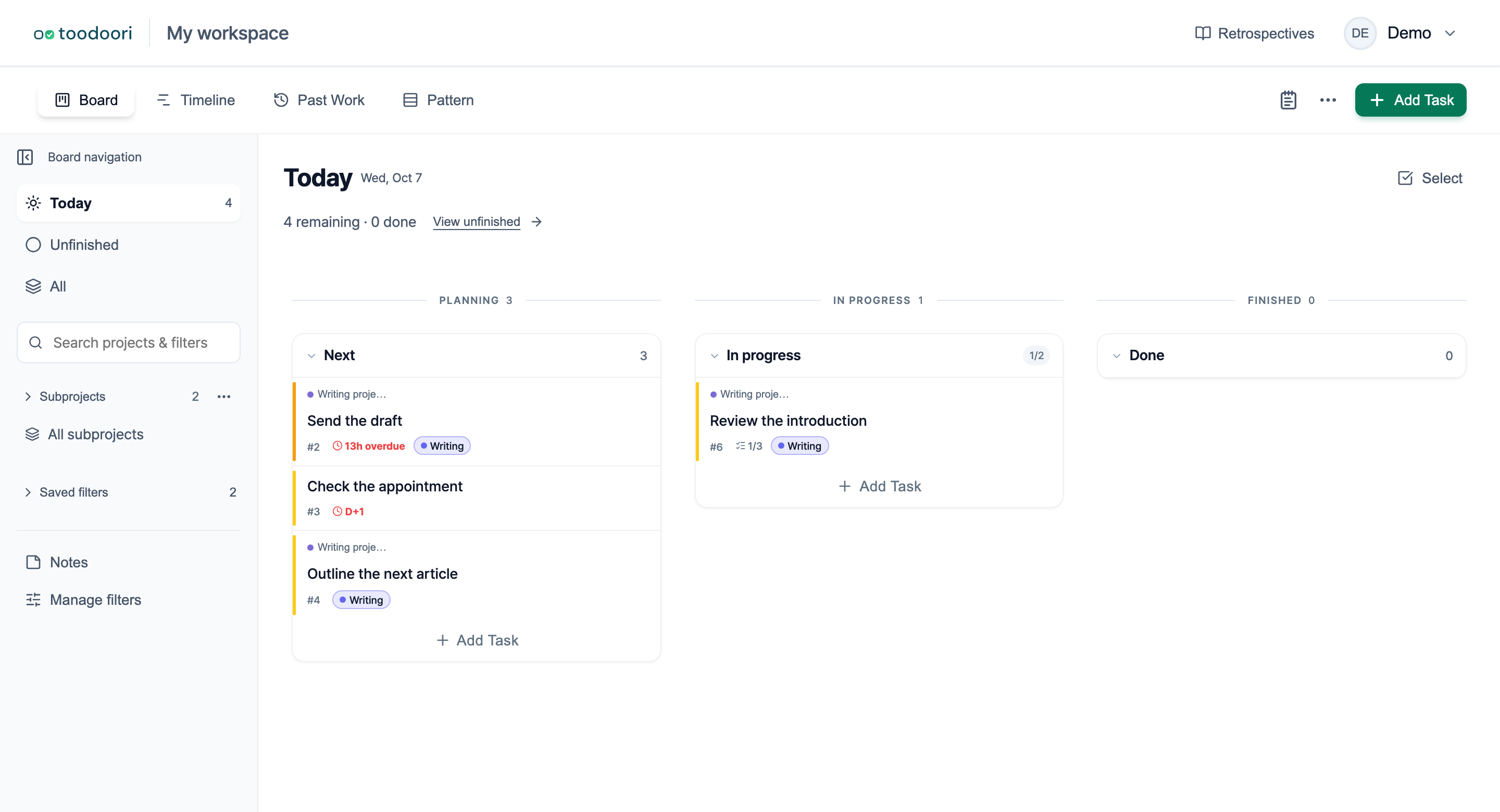
Below the Today heading, a summary shows how many tasks remain and how many are done. To add more, select View unfinished next to it, as described in the next section.
Add tasks to Today
There are three ways to add a task.
From a card
In the Unfinished or All scope, hover over a card to reveal the sun button in its top-right corner. Select it to add the task to Today. On touch screens the button is always visible. The same button appears at the top of task details.
In selection mode
- In the Today scope, select View unfinished. The board switches to the Unfinished scope with selection mode on. In other scopes, turn on selection mode with Select at the top right of the board.
- Check the cards you want to add. Inbox tasks can be checked too.
- In the bar at the bottom, select Add to today.
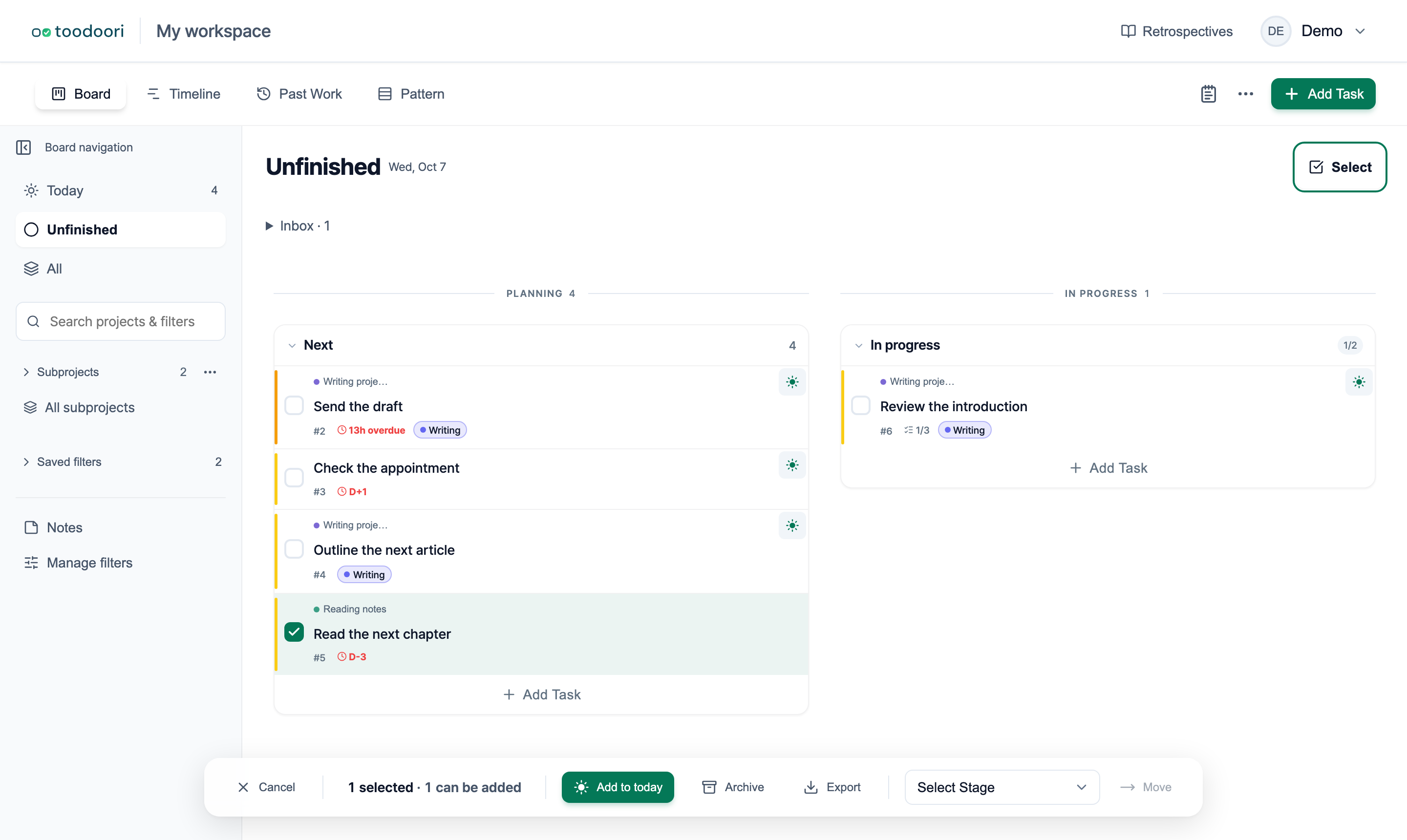
The bottom bar shows how many tasks you checked and how many of them can be added. If every checked task is already in Today, the button changes to Remove from today. You can check only the cards visible on the board. If a task is missing, see which subproject and saved filter are selected in Board navigation.
Create a task in Today
When you use Add Task under a stage in the Today scope, the new task goes straight into Today. You don’t need a separate step to add it.
Remove tasks from Today
You remove tasks the same way you add them:
- Select the sun button on a card or in task details. On cards, it appears when you hover. In the Unfinished and All scopes, cards already in Today always show a filled sun button.
- For several tasks, check them in selection mode and select Remove from today in the bottom bar.
Right after removing, select Undo in the notification to bring the task back. Neither removing nor undoing changes the card’s stage.
You can also remove a task that appeared because of its due date. It leaves Today for that day only, and its due date stays the same. If it still meets the due date condition the next day, it appears again.
You can’t remove a task you completed today.
Task scopes, views, and filters
Open the Board and select a scope in Board navigation on the left. If the navigation is collapsed, expand it. On a narrow screen, open Board navigation by selecting the button that shows the current task scope. There are three scopes:
- Today shows tasks included by due date or added by you for the current day.
- Unfinished shows tasks that have not reached Finished, whether or not they are in Today.
- All includes unfinished and completed tasks on the project board.
Archived tasks stay outside these scopes. Use the Archive to find archived work.
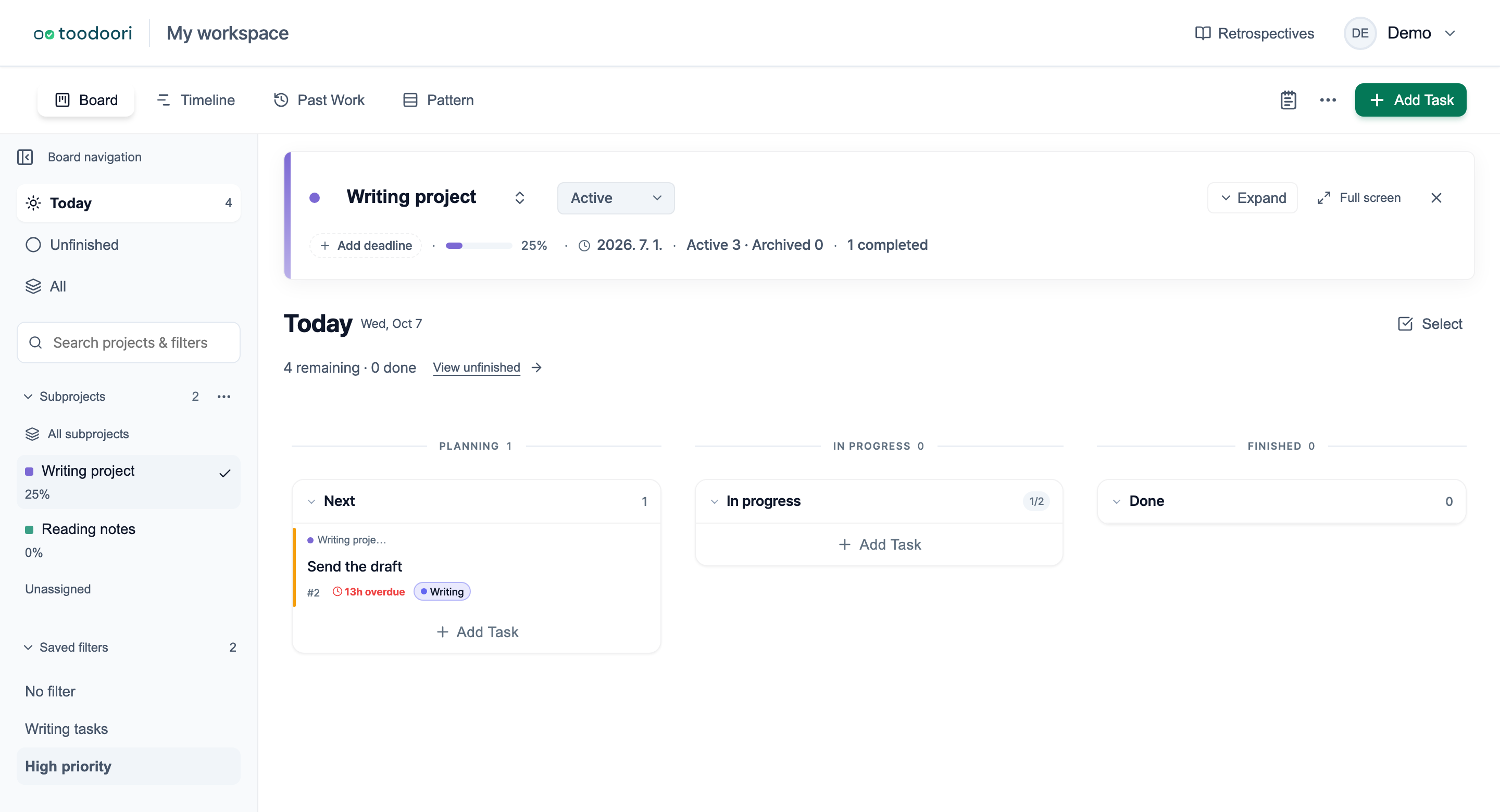
A task scope determines which tasks appear on the Board. Timeline shows tasks across dates. Selecting Today does not limit Timeline to today’s tasks. Past Work is a separate view for reviewing completed tasks. See Kanban Board for the available views.
Today is not a workflow stage, and adding a task to it does not move the card. Drag a card when its work status changes. For example, add an Inbox task to Today, then drag it to In Progress when you start working on it.
A subproject and a saved filter can narrow any scope further. They change which tasks you see, not which tasks are in Today. Organizing & Finding explains how subprojects and saved filters combine.
If Today looks incomplete, see which subproject and saved filter are selected in Board navigation. While either one is selected, Clear project & filter appears there. It clears both and keeps the current scope.
What the sun button on a card means
In the Unfinished and All scopes, a filled sun button marks a task in Today. It appears for tasks included by due date and for tasks you added. A completed task shows a check mark instead.
The sun does not mean a task is in progress. To see where the work stands, check the card’s stage.
Completed tasks and the next day
Moving a card to Finished marks it complete. A task you complete while it is in Today stays there for the rest of the day and counts toward the done total, whether you added it or it appeared by due date. It drops off the next day. You can find completed work through All or Past Work.
Today uses the current date in the app’s time zone. Tasks you add belong to that date and do not carry over automatically. When Today is empty, it shows Choose what to work on today with a View unfinished button. Select it, check the tasks you want to continue, and select Add to today. Unfinished tasks whose due dates have passed still appear automatically on the new day.
Set the scope your project opens with
To open a project in Today by default, select Today under General > Default task scope in project settings and save. See Make It Yours for default scope and view settings.
Related reading
- Getting Started with toodoori: create and complete your first task
- Managing Flow: use the Inbox and limit work in progress
- Organizing & Finding: find tasks with subprojects and filters