Install the toodoori Mac App
toodoori is a personal kanban task app. The toodoori Mac app opens it in its own window instead of a browser tab. It has the same screens and features as the web version, and you sign in with the account you use on the web. It needs an internet connection.
Download toodoori for Mac (DMG)
- Requirements: macOS 13 or later on a Mac with Apple silicon or an Intel processor
We tested these steps on October 28, 2026, using a Mac with Apple silicon and macOS 15.5.
1. Download the DMG
Click the link above to download toodoori.dmg, a disk image file, to your Downloads folder.
2. Move it to Applications
Open toodoori.dmg. In the window that appears, drag the toodoori icon on the left onto the Applications folder on the right.
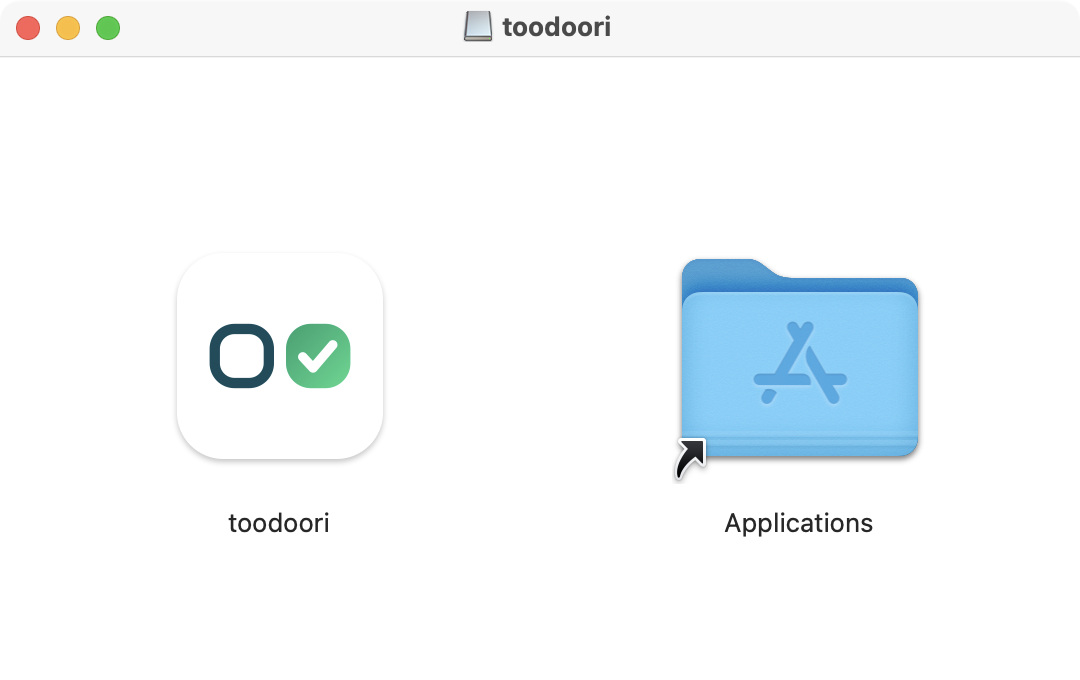
Don’t run the app from the DMG window. Move it to Applications first; a copy running from the DMG can’t install updates.
3. Open it for the first time
Open toodoori from your Applications folder. The first time, macOS may ask whether you want to open an app downloaded from the internet. The app is notarized, which means Apple checked it for malicious software. If macOS asks, click Open.
Opening toodoori.dmg added a disk named toodoori to the Finder sidebar. After the app opens, click the eject button next to that disk. You can then delete toodoori.dmg from your Downloads folder.
4. Sign in
Click Sign in with Google. In the sign-in window that macOS opens, choose the Google account you use on the web. Your projects and tasks appear as they do on the web. If you close the sign-in window, the app goes back to the sign-in screen. Click Sign in with Google to try again.
Updates
The app checks for a new version once a day. When one is available, it shows a window with what’s new. To check right away, choose toodoori > Check for Updates… in the menu bar.
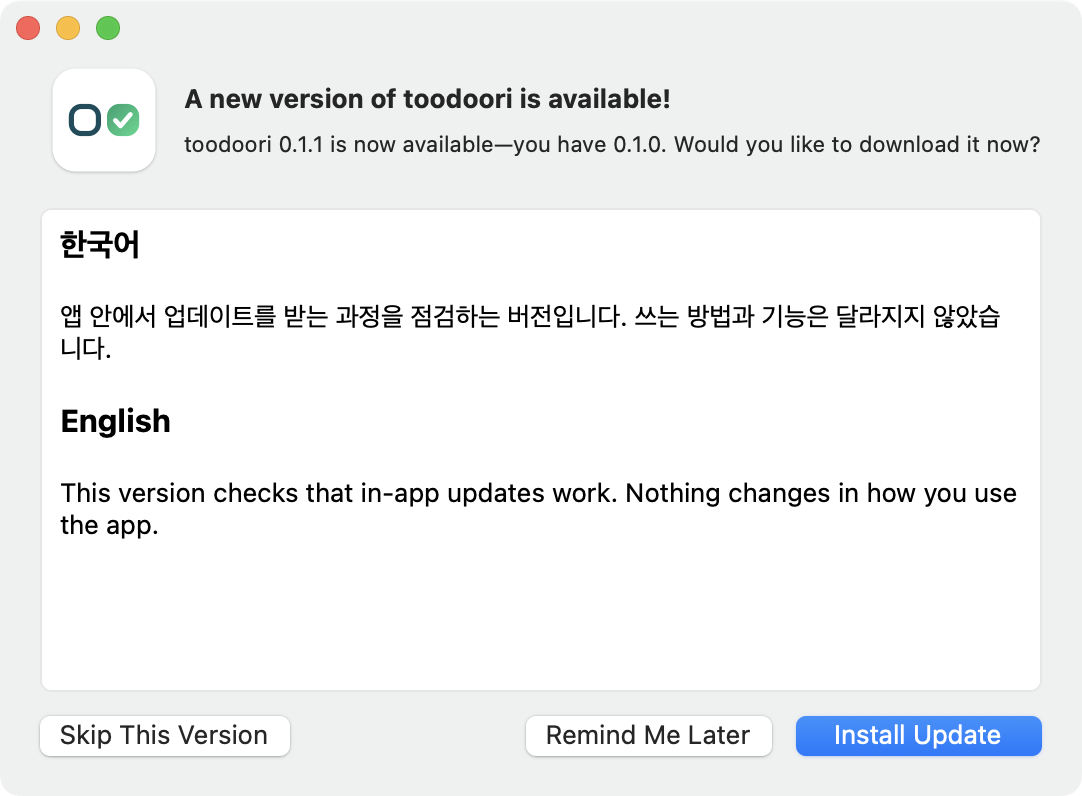
Click Install Update to download the new version. When the download finishes, save anything you’re writing, then click Install and Relaunch. The app quits and opens again with the new version.
To keep your current version, click Remind Me Later or Skip This Version. If you click Remind Me Later, the app asks again at the next check. If you click Skip This Version, it doesn’t ask about this version again until a newer one comes out. A skipped version still appears when you choose Check for Updates… yourself.
What update checks send
To check for updates, the app requests version information from cdn.toodoori.com. The request includes your IP address, the app’s name and version, the version of Sparkle (the software the app uses for updates), and your Mac’s language setting. It doesn’t include your account information, your tasks, your macOS version, or details about your Mac’s hardware.
Turn off automatic checks
You do this in Terminal, the command-line app that comes with macOS. The command in step 2 changes only toodoori’s automatic-check setting.
-
Press Command-Space to open Spotlight, type
Terminal, and press Return. -
Copy the command below, paste it into Terminal, and press Return. If no message appears, the change worked.
defaults write com.toodoori.mac SUEnableAutomaticChecks -bool false -
Click the toodoori icon in the Dock to bring it to the front. Press Command-Q to quit it, and then open toodoori again. Closing the window doesn’t quit the app.
With automatic checks off, you can still choose toodoori > Check for Updates… to check yourself.
To turn automatic checks back on, run the command below the same way, then quit and reopen toodoori.
defaults delete com.toodoori.mac SUEnableAutomaticChecksUninstall the app
-
Click the toodoori icon in the Dock to bring it to the front, then press Command-Q to quit it.
-
Move toodoori from the Applications folder to the Trash.
-
To also remove your saved sign-in and the app’s settings from this Mac, move the four items below to the Trash. Each one holds only toodoori’s data. If an item isn’t there, skip it.
- In
~/Library/WebKit, thecom.toodoori.macfolder - In
~/Library/Caches, thecom.toodoori.macfolder - In
~/Library/HTTPStorages, thecom.toodoori.macfolder - In
~/Library/Preferences, thecom.toodoori.mac.plistfile
The
~stands for your home folder. Finder hides the Library folder by default, so use the Go menu to open each folder. Click Finder in the Dock, then choose Go > Go to Folder… in the menu bar. Copy one of the~/Librarypaths above, such as~/Library/WebKit, paste it into the field that appears, and press Return. In the folder that opens, find the item named in the list and move it to the Trash. - In
Uninstalling the app doesn’t delete your toodoori account or tasks. To delete your account, open My Page on the web and click Delete Account.
Troubleshooting
- “toodoori is damaged and can’t be opened”: The file may have been corrupted while downloading. Delete the DMG, download it again, and repeat steps 2 and 3.
- macOS 12 or earlier: The app can’t be installed. Use toodoori.com in your browser instead.
- You never see the update window: Make sure you opened the copy in your Applications folder.