Track AI Agent Work on a Board and Relations Map
When you hand an AI agent a job with several steps, the chat alone makes it hard to tell which steps are done and what’s left. Ask the AI to create a task for each step, link them in order, and move each one to the right stage as it works. Then you have somewhere to check. The board shows which stage each task is in, and the relations map shows the whole order and every task’s stage on one screen.
This post walks through a made-up example: putting together a customer survey report. The AI app in the example is Claude, connected to toodoori. To connect an AI app, see Connect toodoori to ChatGPT and Claude with MCP.
The example: a customer survey report
The job is to sort out October’s customer survey responses and share the results at a team meeting. Here’s how the work splits between you and the AI.
- Yours: download the survey responses, review and edit the draft, share the results at the team meeting, and send thank-you emails to respondents
- The AI’s: clean up the response data, build a table for each question, group the open-ended answers by theme, find last quarter’s survey report, and write the report draft
The AI can’t build the question tables or group the answers until the data is cleaned up, and it can’t write the draft until both are done. If that order lives only in the chat, it gets harder to find the longer the chat runs.
1. Turn the steps into linked tasks
Start with a sub-project, then ask the AI to create a task for each step. In the same request, ask it to link the steps that depend on each other as Blocked by and Followed by.
Create these tasks in the "Customer survey report" sub-project of the "Work" project.

- Download the survey responses (I'll do this)
- Clean up the response data
- Build a table for each question
- Group open-ended answers by theme
- Find last quarter's survey report
- Write the report draft
- Review and edit the draft (I'll do this)
- Share the results at the team meeting (I'll do this)
- Send thank-you emails to respondents (I'll do this, no set order)

Link them like this:

- Cleaning up the data comes after downloading the responses
- The question tables and the theme groups come after cleaning up the data
- The draft comes after the question tables and the theme groups
- Reviewing comes after the draft, and sharing comes after reviewing
- Link last quarter's report to the draft as Related

Before you create anything, show me the task list and the links, and wait for my go-ahead.
For help deciding what should be its own task and what fits better as a checklist item, see Work Breakdown: Checklists, Subtasks, and Dependencies.
2. Set rules for moving tasks between stages
Tell the AI which stage to move a task to when it starts and when it finishes. This example uses the To do, In progress, Ready for review, and Done stages.
Follow these rules while you work on the tasks I've given you.

- When you start a task, move it to "In progress."
- When you finish a task, move it to "Ready for review" and add a note saying what you did, what you decided, and what's left.
- I'll move tasks to "Done" myself after I've checked the results.
- I'll tell you which task to work on next. If a task before that one is still in "Ready for review," let me know before you start.
If you’re the only one who moves tasks to Done, anything in Ready for review is waiting for you to check. The board then separates work the AI has finished from work you’ve checked.
3. See where things stand on the board
When the AI follows these rules, the board’s stages show you the progress.
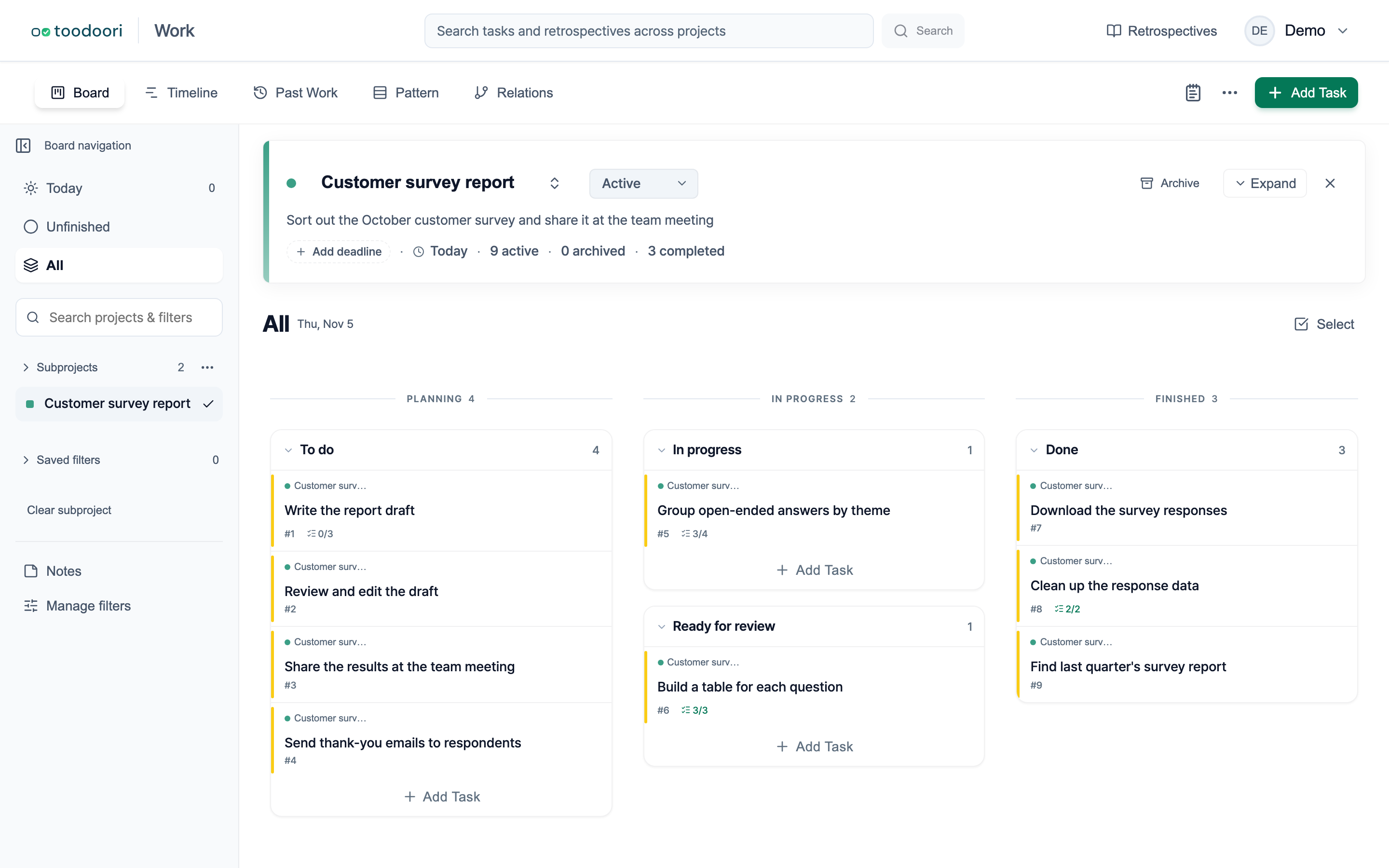
- Done: the responses are downloaded and cleaned up.
- Ready for review: the AI has finished the question tables, and it’s your turn to check them.
- In progress: the AI is grouping the open-ended answers.
- To do: the draft, the review, and sharing the results are still ahead.
The checklist count on a card, such as 3/4, shows how far along a single task is. To learn more about moving and reading cards, see Kanban Board.
4. See the order and stages together in the relations map
The board shows each task’s current stage, but not which task comes after which. To see the order as well, choose the sub-project and open the Relations tab at the top of the project.
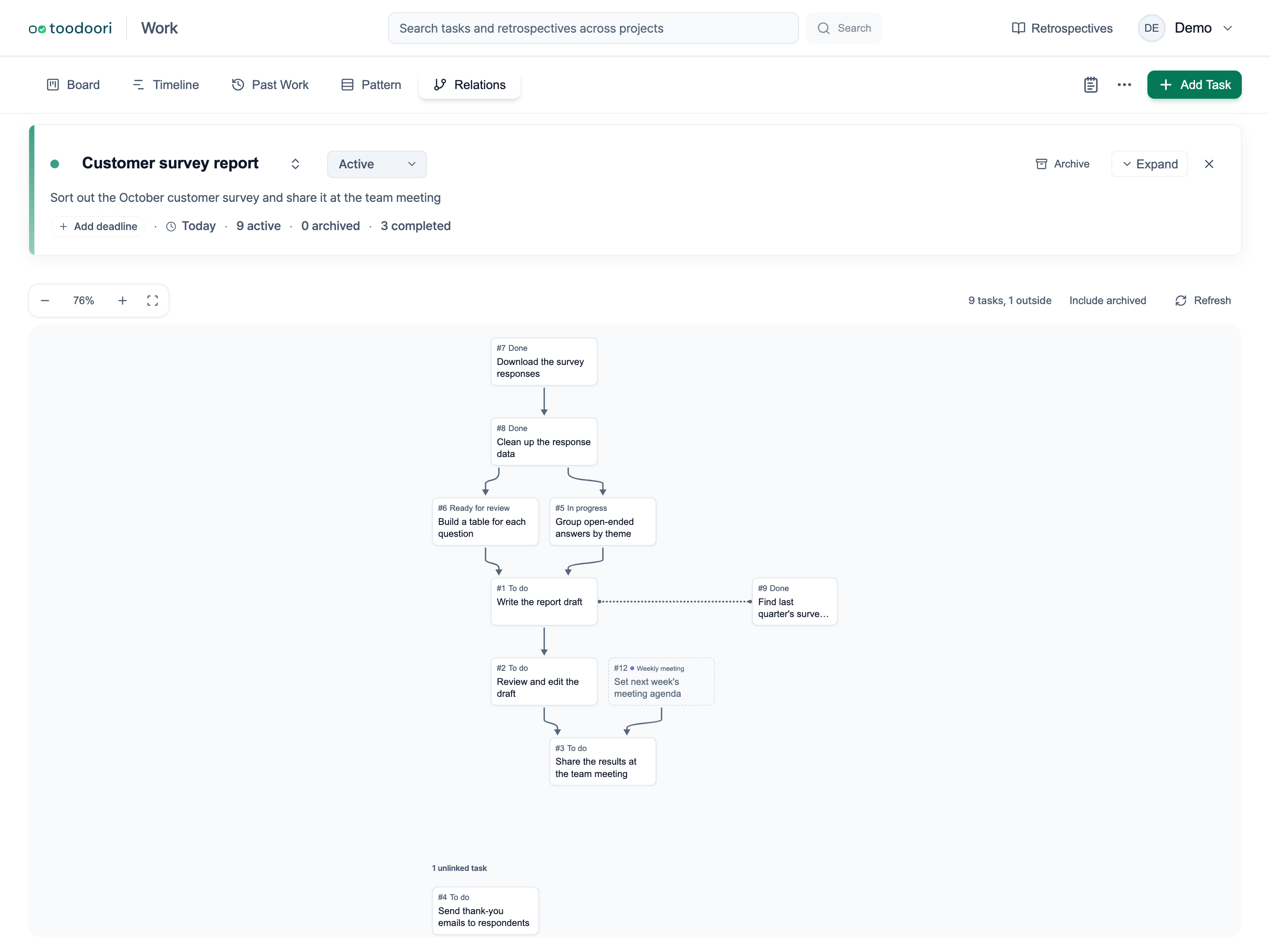
Each box shows the task’s number, stage, and title. Follow the boxes from top to bottom to see the order, and read the stage names to see where each step stands. In this example, the question tables task and the theme grouping task come right before the draft. Their boxes show Ready for review and In progress.
- Tasks with no links sit on a separate row at the bottom. Here, that’s the thank-you emails.
- Tasks in other sub-projects that link to a task in this one appear in dashed boxes, labeled with their sub-project’s name. Here, sharing the results comes after “Set next week’s meeting agenda” from the Weekly meeting sub-project.
A Blocked by or Followed by link only records which task comes first. It doesn’t stop you from starting a task when the one before it isn’t finished. You look at the map and decide what to do next.
Task Relations: Dependencies and Linked Tasks covers the relations map’s layout and how to edit links there.
5. Click a box to check what the AI recorded
Click a box in Ready for review, and the task details open beside the map. Read the notes and files the AI left, check the results, and move the task to Done yourself if everything looks right.
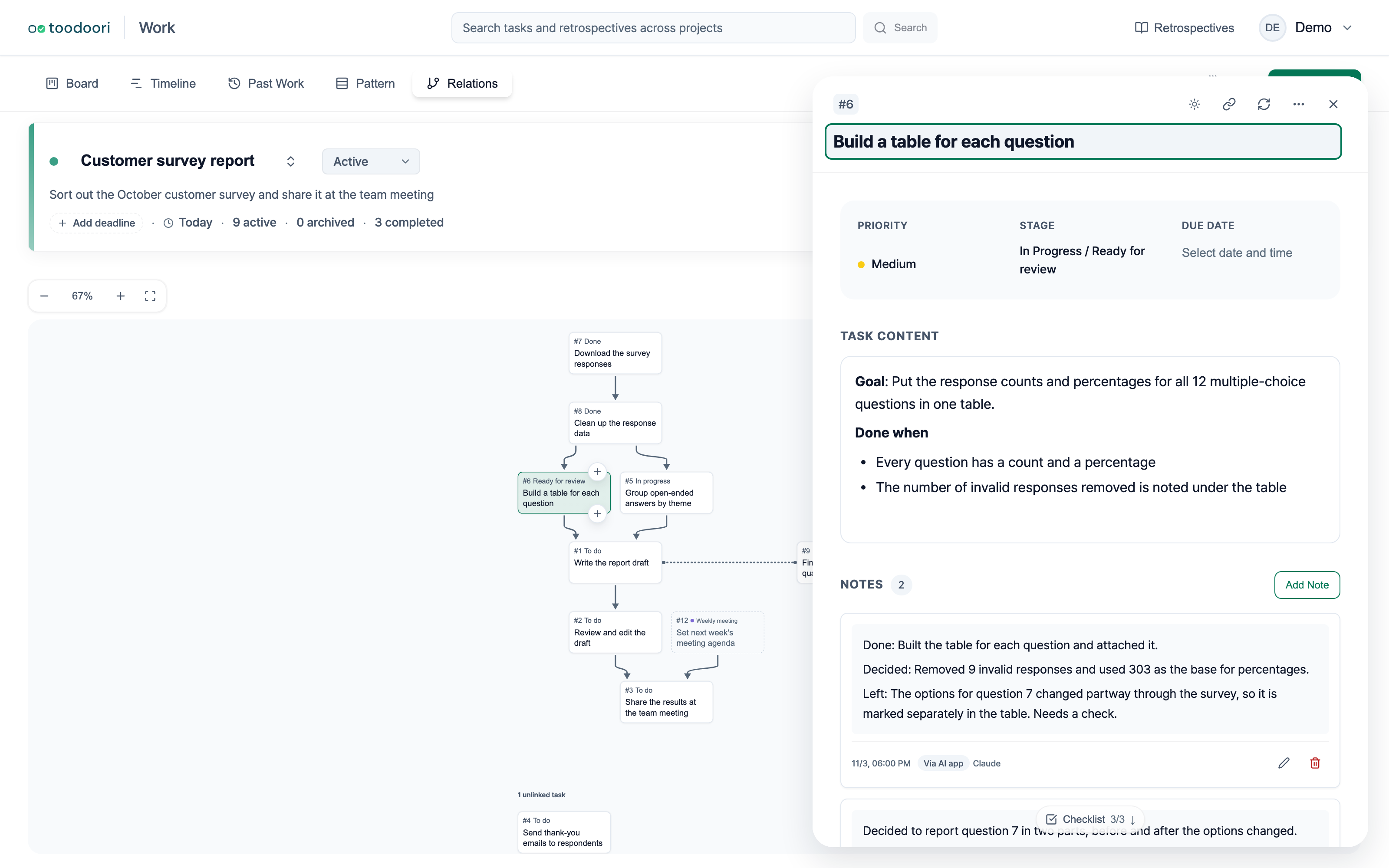
Notes and files that an AI app adds carry a label, so you can tell them apart from your own. Continue an AI Chat Without Starting Over covers what to record in each part of a task so a new chat can pick up the work.
Worth reading next
- The layout of the relations map and the flow view: Task Relations: Dependencies and Linked Tasks
- Picking up AI work in a new chat from what’s recorded in the task: Continue an AI Chat Without Starting Over
- Choosing tasks from an AI conversation: Turn AI Chat into Tasks: A Worked Example