Turn AI Chat into Tasks: A Worked Example
To turn an AI chat into actionable tasks, ask for candidates with clear results, review them, and save only the tasks you choose. A suggestion in a conversation is not yet a commitment to do the work.
The fictional example below starts with rough notes for a small project landing page. It shows the input, a copyable prompt, sample output, and the decisions a person makes before adding cards to a board.
1. Start with the notes you actually have
You do not need a complete project brief. Start with the intended result and the limits you already know.
I want to publish a small landing page for my side project.
It needs a short introduction, one current screenshot, and a contact link.
I have a rough introduction, but the screenshot is out of date.
The page should work at phone and desktop widths.
I have not picked a publication date.
I might add a newsletter later, but it is outside this first version.
The last two lines matter. They tell the AI not to invent a deadline or include the newsletter in the first version.
2. Ask for candidates before saving anything
Paste your notes after this prompt. You can use it to draft candidates without connecting a task app.
Turn the notes below into a short list of task candidates.

For each candidate, give me:
- A title that starts with an action
- The result I can check to decide whether it is done
- Any earlier task it depends on
- Any missing information you need from me

Keep small checks inside the relevant task as checklist items.
Do not invent deadlines, priorities, or extra features.
Separate work for this version from ideas for later.
Propose the tasks in this conversation first.
Do not create, edit, or move tasks in any app yet.
Wait for my explicit approval of the exact tasks and destination.

My notes:
[Paste your notes here]
The prompt defines a review step. It does not configure the connected app’s permissions. If you want to save approved tasks through a connection, follow Connect toodoori to ChatGPT and Claude with MCP for setup and access choices. MCP stands for Model Context Protocol. In the sample output below, URL means Uniform Resource Locator, or web address.
3. Review the proposed tasks
Here is one possible response to the fictional notes. Actual AI responses will vary.
1. Finalize the page copy
   Done when: the text explains what the project does and who it is for.
   Depends on: no earlier task identified.

2. Build the page layout
   Done when: the draft contains the final text, a current screenshot,
   and the contact link, with the layout checked at phone and desktop widths.
   Depends on: task 1 for the final text.

3. Publish the landing page
   Done when: the page is available at its public address.
   Depends on: the reviewed page from task 2.
   Checklist: check the page title and introduction; open the contact link;
   check text and images at phone width; open the public URL in a new window.

For later: newsletter signup.
Question: which contact address should the page use?
No tasks have been saved.
Before accepting a candidate, check that its result matches what you intend to do. In this example, you keep all three task titles but strengthen the publication criterion: “The public page opens in a new window, its links work, and its text and images are readable at phone width.” This gives you a result to check after publication, not only a publish button to press.
You also supply the contact address. You leave the newsletter out and keep the dates unset. If a candidate mixes several results, Work Breakdown: Checklists, Subtasks, and Dependencies explains when to split it.
4. Save only the tasks you chose
You can create the reviewed tasks yourself. If a connected AI app has write access, you can instead approve the exact changes in the conversation. For this example, the approval could be:
Create only these three tasks in the project I selected:
1. Finalize the page copy
2. Build the page layout
3. Publish the landing page

Use the done criteria we just reviewed as task content.
Keep the four publication checks on task 3 as checklist items.
Leave dates unset. Do not create a newsletter task.
Do not move any existing tasks.
After saving, list the created tasks and their project so I can check them.
Choose the destination project before giving this approval. If two projects have similar names, confirm which one you mean before anything is saved.
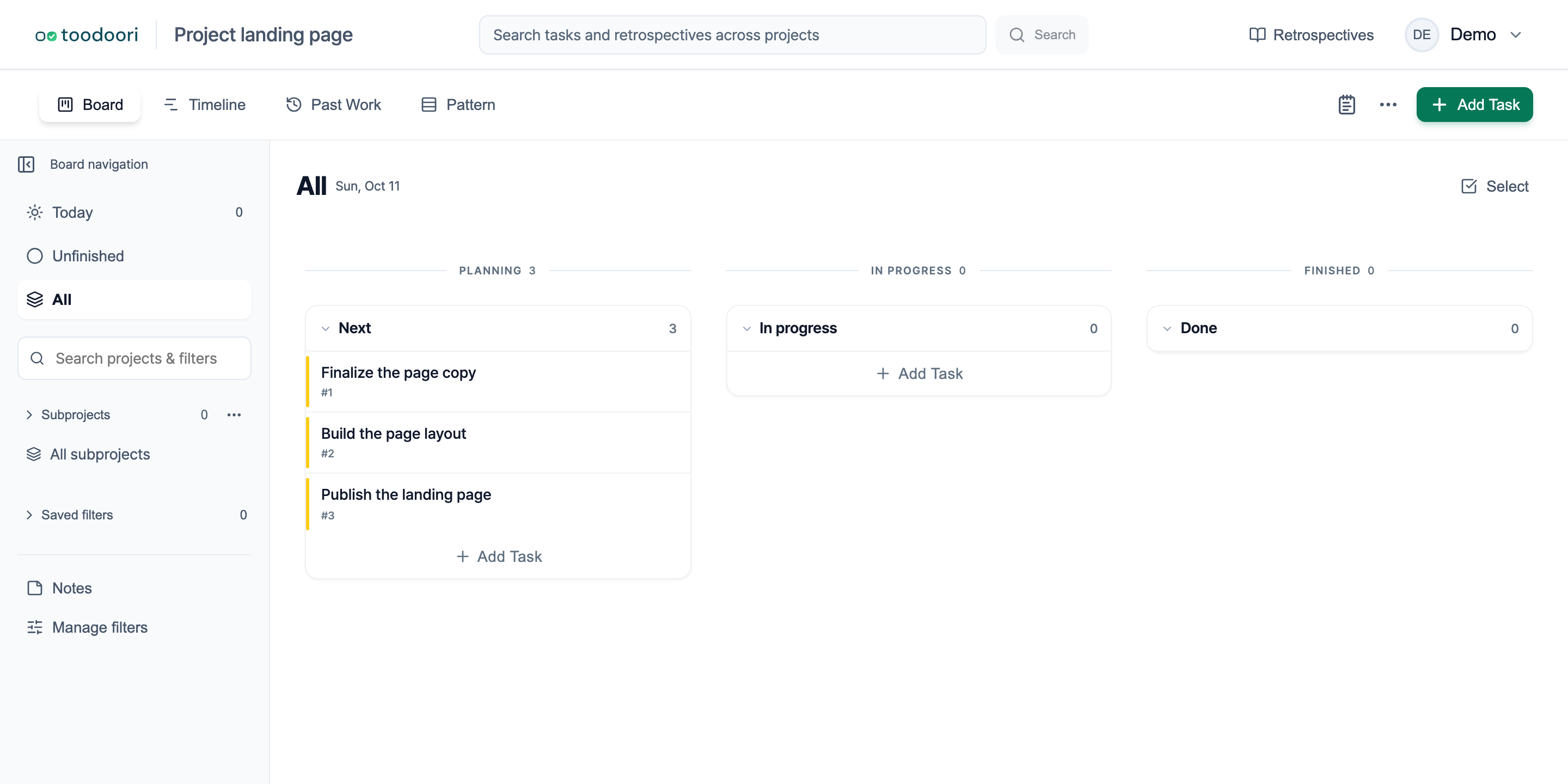
The board contains the work you selected. Choose which card to begin yourself; the AI’s candidate order does not establish your priorities.
5. Check the saved tasks and the finished work
Open the destination project and compare its cards with the approved list. Check the titles, done criteria, checklist items, and dates. Confirm that no newsletter task was added. If the AI reports a failed save, inspect the board before retrying so you can avoid duplicate cards.
Later, verify the actual result before completing each task. For the published page, open its public address in a new window, check the phone layout, and test its links. Creating a card or checking a box does not establish that the page works.
Keep useful conclusions with the relevant task so you can find them after the conversation ends. Where to keep the notes from working with AI covers those records. Telling AI-written notes apart from your own explains the authorship labels on saved content.