Weekly Work Plan Template: Choose What Fits This Week
A weekly work plan separates the tasks you intend to handle this week from work you will revisit later. Give each selected task a result you can check and a next action. Add a due date only when there is an agreed deadline.
Start with your existing task list, unfinished work, and any commitments already on your calendar. The template below works in a text document or notebook. The example shows how to use it for a small website update, then continue with the same tasks on a board.
What to put in a weekly work plan
Copy this blank template and add one task entry for each piece of work you choose. Keep questions and later ideas separate so they do not look like tasks you have committed to finish.
Week starting:

This week's tasks:
- Task:
  Done when:
  Current status:
  Due date, or not set:
  Next action:

Waiting or questions:
Work to revisit later:
Completed work:
“Done when” describes the result you will inspect. “Next action” describes what you can do to reach it. For example, a finished introduction explains the project and its audience. Your next action might be to compare the draft with the current page.
Do not fill the due date field with Friday just because you are planning a week. A week is the period you are considering; a deadline is a separate commitment.
A worked example
These fictional records show a website plan updated during the week. The week-start date stays the same as task statuses change.
Week starting: October 12, 2026

This week's tasks:
- Task: Finalize the introduction
  Done when: the text states what the project does and who it is for.
  Current status: ready to start
  Due date: not set
  Next action: compare the draft with the current page.

- Task: Check the contact button on mobile
  Done when: the button opens the correct address at phone width,
  and the test result is recorded.
  Current status: in progress
  Due date: not set
  Next action: open the draft at phone width and test the link.

Waiting or questions: none recorded.
Work to revisit later: review newsletter signup next week.
Completed work: list questions for the user guide.
Neither selected task has an agreed deadline in this example. The newsletter remains a candidate for next week, not a promise to build it then.
The completed question list stays in the record because it can inform the introduction. Keep its finished status when reviewing the plan instead of adding it to the unfinished work again.
Choose this week’s work
- Review what is already in progress. Find the next action for each unfinished task before adding new work. In the example, the next action is to check the contact button’s position and destination at phone width.
- Check existing commitments. Compare agreed deadlines with meetings and other time you already have planned. Keep only work you can reasonably make room for.
- Choose a clear result for each task. Split a task if it contains outcomes you need to follow separately. Work Breakdown: Checklists, Subtasks, and Dependencies explains that choice.
- Set other work aside explicitly. Give later ideas a review point. “Review newsletter signup next week” preserves the question without adding it to this week’s work.
- Select today’s work from the plan. At the start of each day, choose what you can act on now. A task can belong to this week without belonging to today.
After this pass, each selected task should have a next action. If a missing reply prevents that action, record what you need and when you will check for it.
Adjust the plan when something changes
When a new request arrives, compare it with the tasks you already chose. If you accept it, decide which existing task will wait. Update the plan so it still describes your choices.
If the contact check reveals a problem, record the result and the next action. You may choose to move the introduction review to the next day while you fix and recheck the button.
At the end of the week, leave a next action on unfinished tasks before choosing whether to carry them forward. For a fuller review of what happened, use Weekly Retrospective Questions and a Worked Example.
Continue the plan in toodoori
In toodoori, you can name stages This Week, Next Week, In Progress, and Done to match this example. These are stage names you choose. Move tasks as their status changes and keep their next actions in the task details.
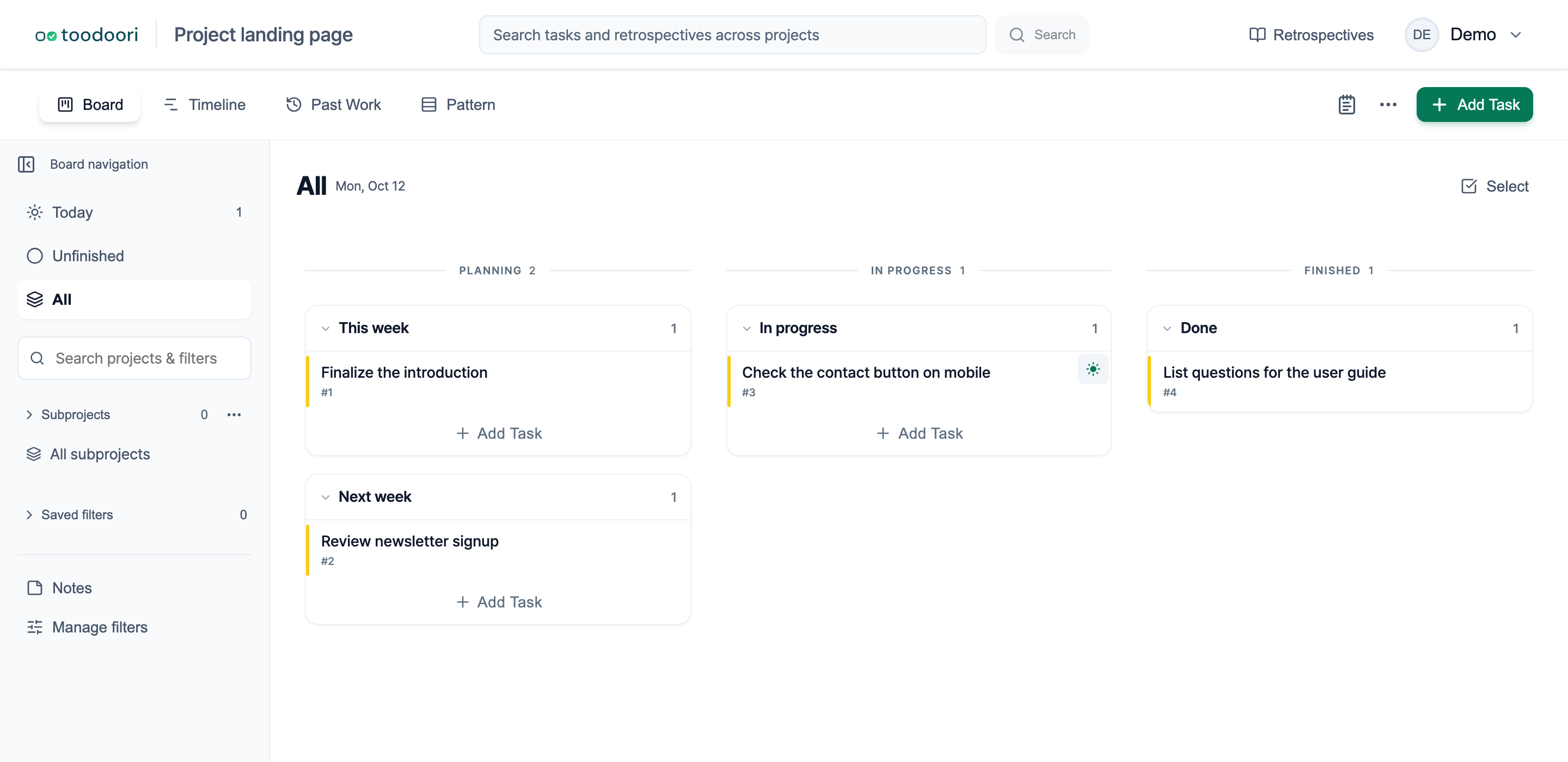
The screenshot uses fictional tasks and custom stage names. Today is a separate task scope. Adding a task to Today does not change its stage. See Today: Choose Your Daily Tasks for the daily selection controls.