Meeting Action Items: Examples and a Follow-Up Template
After a meeting, separate your notes into work you agreed to do, things you need to check with someone else, and decisions that remain open. Turn your own commitments into action items with a clear result and an agreed due date, if one exists.
You need the meeting notes and any messages that clarify what was agreed. You can use the method below in a notebook or task app. For taking notes while the meeting is still happening, see Meeting Notes and Urgent Requests: Capture First.
What an action item needs
An action item should tell you what to do without reopening the whole meeting. Copy this blank template for each commitment you accepted.
Source meeting and date:
My task:
Done when:
Agreed due date, or not set:
Information I still need:
Next action:
Where I will record the result:
Use an action in the task title, such as “Check the contact button on mobile.” Keep the result specific: “At phone width, the button opens the correct address, and I have recorded the test result.”
If the notes only say “look into the contact button,” confirm what needs checking. Do not turn an unclear comment into an invented deadline or a larger commitment.
Sort a set of meeting notes
Suppose these fictional notes came from a website meeting on Monday, October 12:
- I will check the contact button on mobile by Wednesday.
- A colleague will send the user-guide draft by Thursday.
- We will decide whether to add a newsletter at the next meeting.
The first line is your task. The second records someone else’s commitment and something you may need to follow up on. The third is an open decision.
Here is the template filled in for the first action item:
Source meeting and date: website meeting, October 12, 2026
My task: check the contact button on mobile
Done when: at phone width, the button opens the correct address,
and I have recorded the test result.
Agreed due date: Wednesday, October 14
Information I still need: none recorded
Next action: open the page at phone width and test the contact link.
Where I will record the result: a note on the contact-button task
For the draft, record your own follow-up: “Check whether the user-guide draft has arrived after Thursday’s agreed handoff.” Keep the colleague’s commitment in the note so you know why you are checking. Your follow-up is complete when you have checked and recorded the result, even if the draft has not arrived.
Keep the newsletter under open decisions: “Decide whether to add a newsletter at the next meeting.” Do not create implementation tasks until that decision is made.
Move the notes into tasks and follow-ups
- Mark the commitments you accepted. Create one task for each result you are responsible for. Leave background discussion in the meeting notes.
- Write the completion criterion. For the contact button, include opening the intended address and recording the result. “Checked” alone will not explain what you observed.
- Keep small checks together. The phone-width layout and link destination can be checklist items within the contact-button task. Use Work Breakdown: Checklists, Subtasks, and Dependencies when pieces need separate progress.
- Record your follow-up on another person’s work. Name the expected response and the agreed handoff. Choose when you will check it yourself.
- Keep unresolved decisions with their next discussion point. The newsletter note should name the next meeting, not appear among work already approved.
Before closing the notes, compare the task list with what was actually agreed. Every task should either be your commitment or an explicit follow-up you chose to make.
What to check next time
When you return to an action item, look for the result, the missing information, and the next action. A stage change alone does not explain whether the contact link worked.
If the draft has arrived, record where to find it. If it has not, note that you checked and decide whether another follow-up is needed. Do not mark the colleague’s drafting work complete on the basis of your check.
If the next meeting changes the newsletter decision, update the decision note first. Create work only for the scope that was agreed.
An example in toodoori
Put the agreed result and meeting source in the task’s content. Use its checklist for the mobile layout and link checks. Add a note after testing so the observation stays with the task.
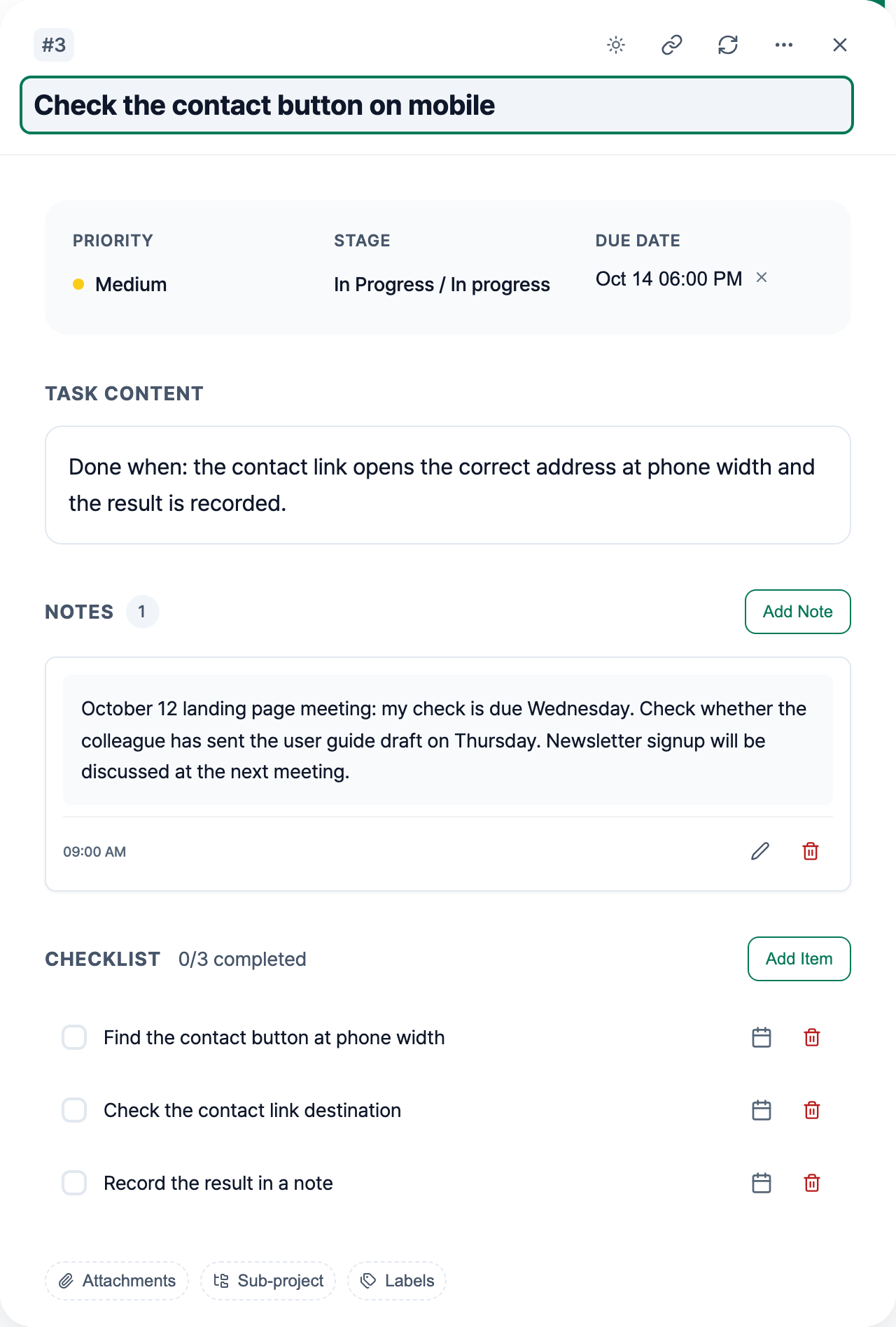
The screenshot shows fictional meeting details. You enter and update these records yourself. Task Cards explains the content, checklist, and notes controls.