Daily Work Log Template: Record What Changed Today
A daily work log records what you finished, what remains in progress, what you need to check, and the next action you want to take. Use task notes and actual results to write it. A useful entry lets you resume the work without reconstructing the day from memory.
Start with today’s completed and unfinished tasks, any notes you added, and the files or messages that show what happened. The blank template and worked example below are records you write yourself. You can keep them in a notebook or text document.
What to include in a daily work log
Copy this template at the end of a work session. Add only the detail you need to find the result or continue the task.
Date:

Completed:
- Task:
  Result and where to find it:

Still in progress:
- Task:
  What I checked or changed:
  What remains:

Waiting or questions:
- What I need:
  When I will check:

Next action:
The result matters more than a broad activity label. “Reviewed the introduction” leaves open whether anything changed. “Finished the review; revised text is in Website introduction v2” gives you a record you can check.
Keep completed work and partial progress separate. Finding a problem during a test is worth recording even when the task is not finished.
A completed daily work log
This fictional example follows a website update. The document names are sample references, not links to real files.
Date: October 12, 2026

Completed:
- Task: review the introduction.
  Result and where to find it: reviewed text saved in
  "Website introduction v2".

Still in progress:
- Task: check the contact button on mobile.
  What I checked or changed: tested "Website draft v3" at phone width.
  The link opens the correct address, but the button position needs adjusting.
  What remains: adjust the button position,
  then check its position and destination again.

Waiting or questions:
- What I need: confirmation that the user-guide draft was sent.
  When I will check: after Thursday's agreed handoff.

Next action: adjust the contact button's position and repeat the check.
The contact-button entry records an observation and the remaining work. It does not say the mobile check passed. The draft question stays separate because checking for a message is a different action from editing the page.
You can tell where to resume from this entry: open Website draft v3, adjust the button position, and test it again. You also know where to find the completed introduction.
Build the log from task records
- Open the tasks you worked on. Check their notes and current results. A card that moved to Done tells you which task to inspect; its content explains what was completed.
- Record the finished result. Name the file, page, message, or other output. If you cannot verify completion, leave the item under Still in progress until you check it.
- Describe the unfinished work precisely. Write what you observed and what remains. For the contact button, the remaining work is adjusting its position and repeating the check.
- Separate missing information from work you can do. Record the expected draft and your chosen check time. Do not describe a colleague’s draft as your own unfinished writing task.
- Choose the next action. Use a verb and an object, such as “Adjust the contact button’s position at phone width.” Add enough detail that you can start without a new planning session.
Read the entry once before leaving it. Check that each completed item points to a result and each unfinished item gives you a place to resume. If you did not record why something stopped, leave that reason unknown instead of inventing an explanation.
Use the log the next day
Open the previous entry before choosing new work. Check whether the next action is still available and whether the information you were waiting for has arrived.
If the plan changes, update the next action on the task and explain the change in the new day’s entry. Keep yesterday’s entry as the record of what you knew then.
A daily entry does not need to judge the whole day. When you want to compare several days and choose a change for the next week, use Weekly Retrospective Questions and a Worked Example.
An example in toodoori
Keep observations and next actions in the relevant task’s notes as you work. Later, use those notes to write your daily log. Task Cards explains where the task content, checklist, and notes appear.
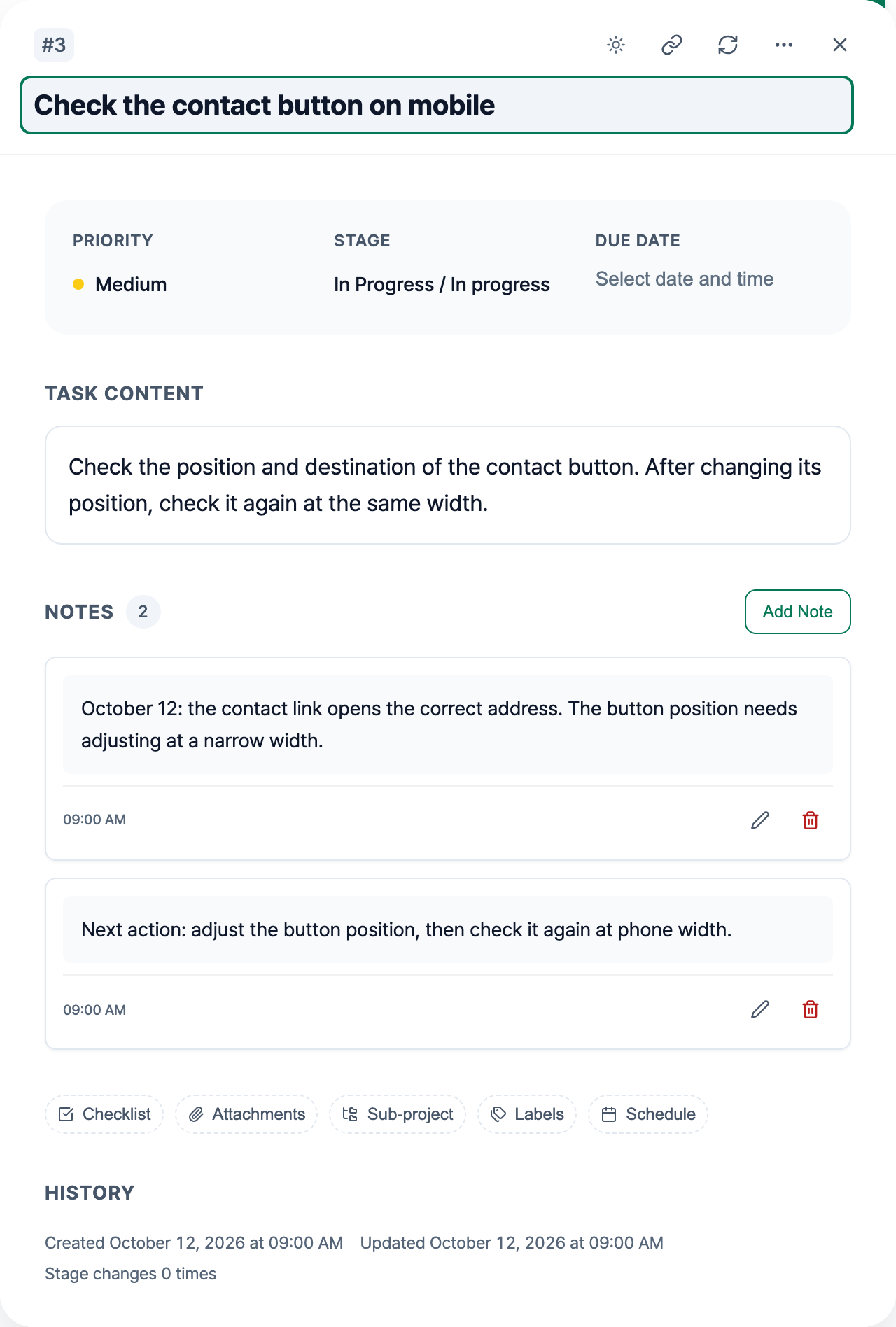
The screenshot shows a manually written note with fictional work details. It is not an automatically generated daily report. You can also open completed tasks through Past Work and Archive when gathering the day’s records.